Enter your details…
(It might look a little funny here, but bear with us!)
Your Email Signature Code
Preview:
How to Install Your Email Signature in Outlook
Step 1
Download Your Signature File
Click the “Download HTML File” button above to automatically download your personalized signature file. It will be saved as “[your-username]-signature.html” in your Downloads folder.
Step 2
Copy the HTML file to a new Microsoft Outlook signature
- In your File Explorer, find and open the folder that contains your downloaded signature. This is probably the Downloads folder.
- Open Microsoft Outlook.
- Create a new email message (which you won’t send)
- From the top menu, click Insert, then Signature. Scroll down to select Signatures…
- Click + New signature.
- Enter a name for your new signature.
- Leaving the Signatures dialog box open, drag and drop the HTML signature file right onto the middle section of the dialog box.
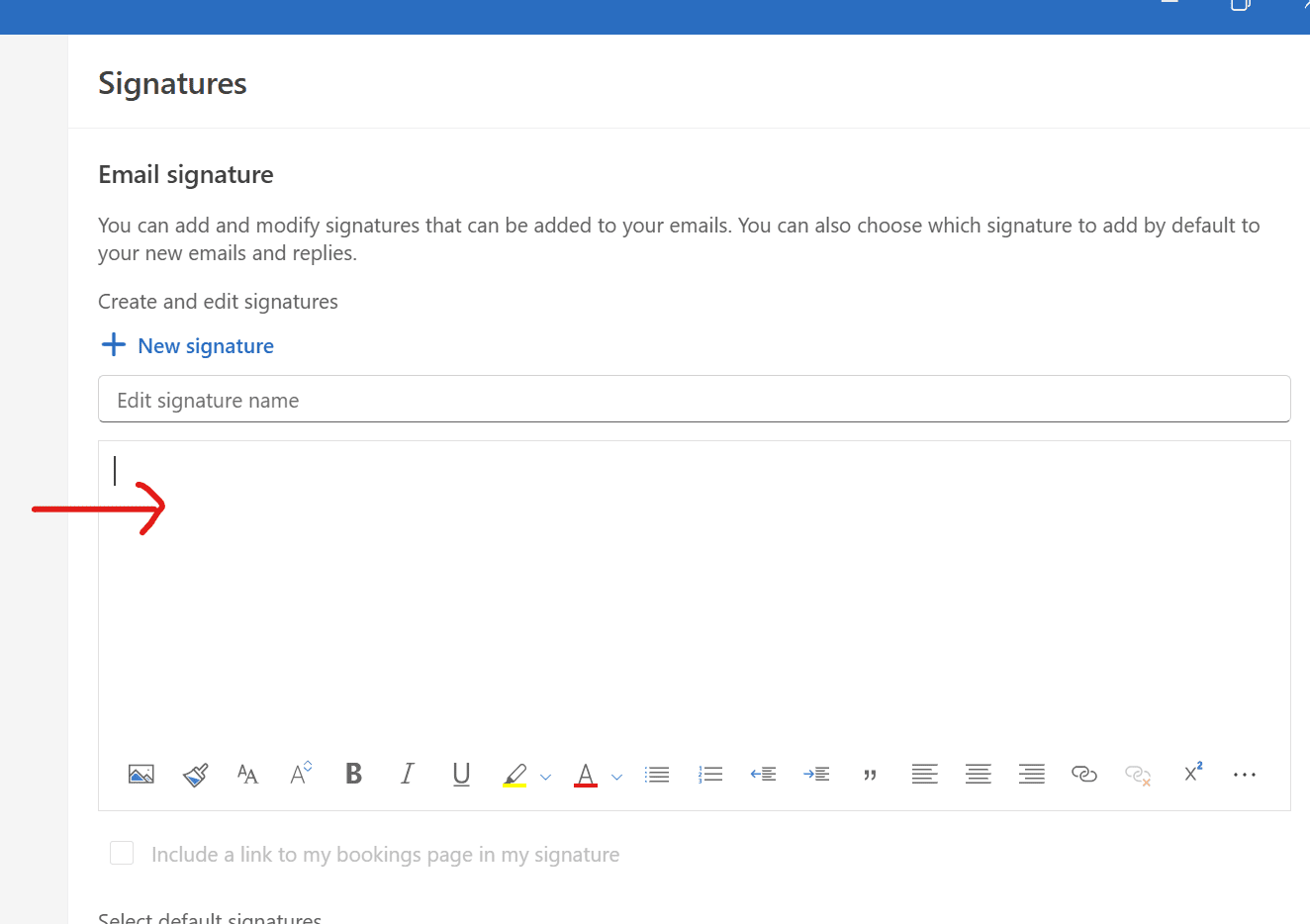
- Outlook will open a new panel with your signature in it. Click inside the panel, select all the content in it (Ctrl+A), and copy it (Ctrl+C).
- Click into the Signatures panel in Outlook again, and paste the copied signature (Ctrl+V).
- Click Save to save your new email signature.
- Scroll down to choose your defaults for new messages and for replies and forwards.
- Click OK to close the signature settings.
- You can now close the new email you created (don’t send it!)
Step 3
Test Your Signature
Create a new email to test that your signature appears correctly with all images and formatting intact.